
Cleaning electronics and screens is not just about appearance. Dust, fingerprints, and grime can affect performance, cause overheating, and even shorten the lifespan of your devices. But cleaning the wrong way can do more harm than good. If you’ve ever wondered why your phone still looks smudged after a wipe, or if you worry about damaging your TV screen, you’re not alone.
Many people make mistakes when cleaning electronics—sometimes without realizing it. Learning the right methods and materials makes a big difference, and with a few practical tips, you can keep your gadgets looking new and working well for years.
Why Safe Cleaning Matters
Modern electronics are sensitive. Screens, especially, have coatings that can scratch or wear off. Ports and vents collect dust that can lead to overheating. Using the wrong cleaning method can leave streaks, damage surfaces, or even cause devices to stop working. According to a study by Statista, over 80% of people touch their smartphones several times per hour. That’s a lot of opportunities for germs and dirt to build up. Safe cleaning is not just about looks—it’s about health and device longevity.
What You Need Before You Start
Before cleaning, gather the right supplies. Never use just any cleaner or cloth. Here’s what you should have ready:
- Microfiber cloths: These are soft and don’t scratch surfaces.
- Distilled water: Tap water may leave mineral spots.
- Isopropyl alcohol (70% or less): For disinfecting and removing oils.
- Compressed air: Blows dust out of tight spaces.
- Cotton swabs: Cleans small areas like headphone jacks.
- Screen-safe cleaning solution: For tough smudges on screens.
Avoid paper towels, household glass cleaners, and anything abrasive. These can cause fine scratches or strip protective coatings. If you’re unsure about a product, check your device’s manual for recommendations.
Step-by-step: Cleaning Screens Safely
Screens are often the most delicate part of any device. Phones, laptops, tablets, TVs, and monitors all have unique needs, but the basic approach is similar.
1. Power Down And Unplug
Always turn off the device and unplug it. This prevents damage and makes smudges easier to see.
2. Remove Loose Dust
Gently use a microfiber cloth or a soft brush to remove dust and loose particles. Press lightly—no scrubbing.
3. Prepare The Cleaning Solution
Mix a 50/50 solution of distilled water and isopropyl alcohol (no stronger than 70%). Spray it onto the cloth, never directly onto the screen.
4. Wipe The Screen
Wipe the screen gently in a circular motion. Pay attention to the edges, where grime often builds up. For stubborn spots, press a bit more but never use force.
5. Dry And Polish
Turn the cloth to a dry side and buff the screen. This removes streaks and makes the surface shine.
Non-obvious tip: For screens with anti-reflective coatings (common on high-end monitors and TVs), always check the manufacturer’s guidelines. Some coatings react badly to alcohol, so use only distilled water if unsure.
How To Clean Keyboards And Touchpads
Keyboards collect crumbs, hair, and oils from your hands. They’re also a breeding ground for bacteria. Here’s how to clean them safely:
- Unplug or turn off the device.
- Shake out debris: Hold the keyboard upside down and gently tap it.
- Compressed air: Spray between keys to remove hidden dirt.
- Wipe with a damp microfiber cloth: Lightly moisten with your cleaning solution.
- Cotton swabs: For tight areas, dip a swab in cleaning solution and run it around the keys.
- Dry: Use a dry cloth to remove any leftover moisture.
Practical example: Laptop touchpads can be sensitive to liquids. Wipe them with a barely damp cloth, and never let liquid pool around the edges.
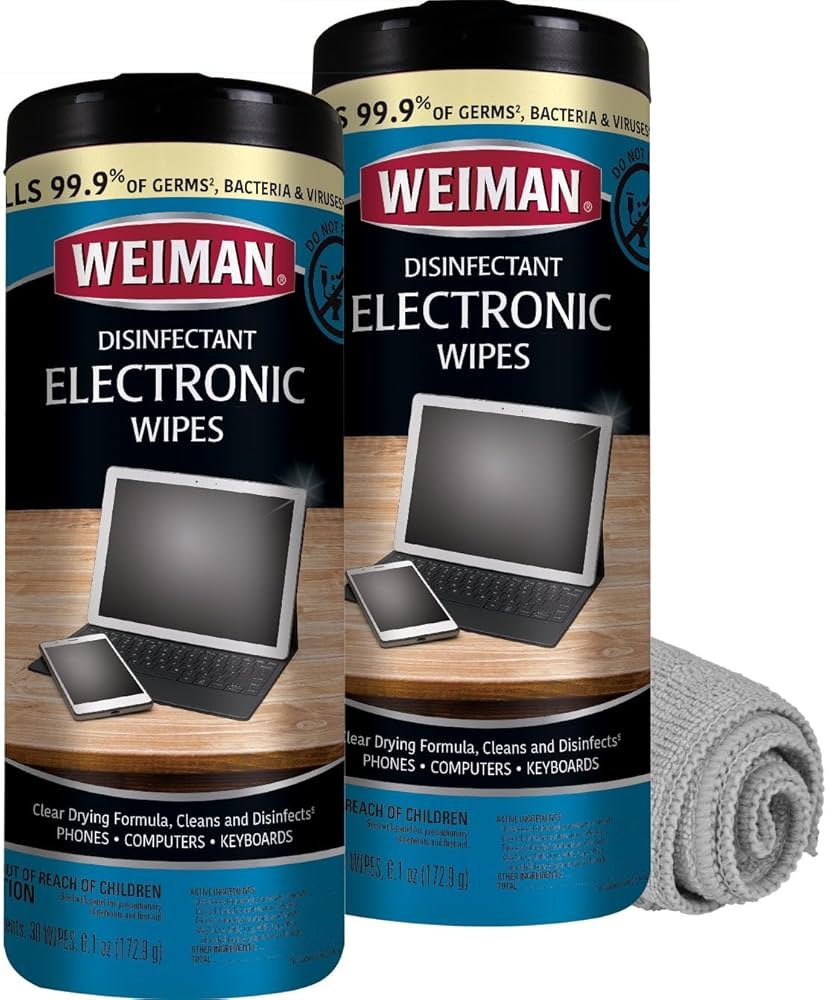
Credit: www.amazon.com
Cleaning Device Exteriors And Cases
Plastic, metal, and rubber exteriors attract fingerprints and dust. Here’s a simple method:
- Use a microfiber cloth dampened with your cleaning solution.
- For textured or rubber surfaces, a soft brush helps remove grime.
- Avoid harsh chemicals—these can fade colors or make plastics brittle.
Non-obvious insight: For phone cases, especially silicone, remove them from the phone first. Wash cases with mild soap and water, rinse, and let dry completely before putting them back. This prevents trapped moisture that can damage your phone.
Special Care For Ports, Jacks, And Buttons
Ports and buttons can be tricky. Here’s how to clean them without damage:
- Compressed air: Short bursts clear out dust from USB, charging, and headphone ports.
- Cotton swabs: Slightly dampen with alcohol, but never insert anything wet into a port.
- Toothpicks: For stubborn debris, gently loosen with a wooden toothpick—never metal.
Key advice: Never use excessive force. Damaging a port can be costly to repair.
How Often Should You Clean?
Frequency depends on use, environment, and personal habits. Here’s a guideline:
| Device | Recommended Cleaning Frequency |
|---|---|
| Smartphones | Every 2-3 days |
| Laptops/Tablets | Weekly |
| TV Screens/Monitors | Monthly |
| Keyboards/Touchpads | Weekly |
Extra tip: If you work in a dusty area or share devices, clean more often.
What Not To Do When Cleaning Electronics
Some mistakes can ruin your devices. Avoid these common errors:
- Never spray cleaner directly on screens or keyboards.
- Don’t use paper towels—they scratch surfaces.
- Avoid window cleaners or strong chemicals.
- Don’t use too much liquid—moisture can seep into devices.
- Never use bleach or ammonia-based products.
Comparing Cleaning Materials
Choosing the right cloth or cleaning solution matters. Here’s how some common options compare:
| Material | Safe for Screens? | Effectiveness | Risk of Damage |
|---|---|---|---|
| Microfiber Cloth | Yes | High | Very Low |
| Paper Towel | No | Medium | High (scratches possible) |
| Lint-Free Cloth | Yes | Medium | Low |
| Cotton T-shirt | Sometimes | Low | Medium |
Advice: Always use a dedicated microfiber cloth for screens. Keep it clean—dirt on the cloth can scratch surfaces.
Cleaning Other Electronics: Game Consoles, Cameras, And Headphones
Different devices need unique care:
- Game consoles: Clean vents with compressed air. Wipe surfaces with a damp microfiber cloth. Never block ventilation.
- Cameras: Use a blower for lenses. Never touch the lens directly with fingers. Use only lens-safe wipes for cleaning.
- Headphones/Earbuds: Remove ear tips if possible and wash with mild soap. Wipe the main body with a cloth dampened in isopropyl alcohol.
Practical tip: For waterproof devices, check the seals before cleaning. Water can still enter if the seals are damaged.
Disinfecting Versus Cleaning: What’s The Difference?
Cleaning removes dirt and grime. Disinfecting kills germs and viruses. For phones and tablets, especially in shared environments, disinfection is important.
- Use 70% isopropyl alcohol wipes or sprays.
- Wipe gently, avoiding excess moisture.
- Let the surface air dry.
Some devices, like the Apple iPhone, have specific instructions for disinfecting. Always check the manufacturer’s site for the latest guidance.
When To Get Professional Help
If your device has sticky keys, blurry screens that don’t clear up, or visible damage, professional cleaning may be needed. DIY methods can’t fix internal dust or liquid damage. For expensive electronics, like high-end TVs or gaming computers, periodic deep cleaning by a professional is a smart investment.
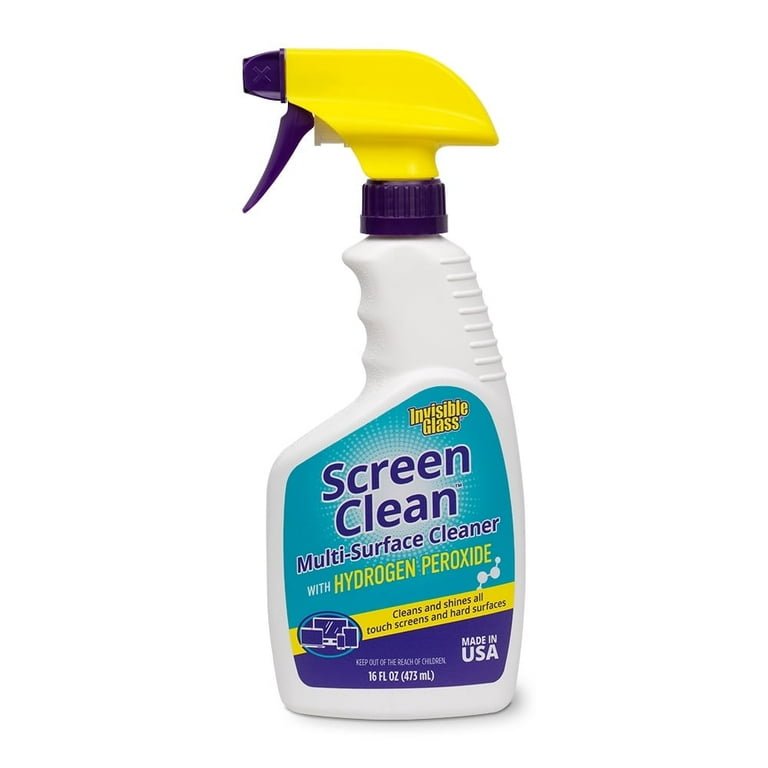
Credit: www.walmart.com
The Hidden Dangers Of Neglecting Cleaning
Neglect can have real consequences. Dusty laptops overheat and slow down. Dirty screens strain your eyes and reduce image quality. Sticky keyboards harbor bacteria—some studies show more germs than a toilet seat. Regular cleaning protects your health and your investment.
A Quick Comparison: Diy Vs. Commercial Screen Cleaners
Is it better to make your own cleaner or buy a commercial one? Here’s a quick look:
| Type | Cost | Effectiveness | Safety |
|---|---|---|---|
| DIY (Water + Alcohol) | Low | High (if mixed correctly) | Safe for most screens |
| Commercial Cleaners | Medium to High | High | Check label for compatibility |
| Household Glass Cleaner | Low | Medium | Not safe for screens |
For most people, a simple mix of water and isopropyl alcohol is enough. Just remember: always apply to the cloth, not the device.
Pro Tips For Long-term Device Care
- Store devices in clean, dry places.
- Wash hands before use to reduce oil and dirt transfer.
- Use screen protectors to make cleaning easier.
- Keep food and drinks away from electronics.
- Replace microfiber cloths regularly. Dirty cloths can scratch screens.
Even careful users miss these steps. Making them a habit extends your device’s life.
When In Doubt, Check The Manufacturer’s Guidelines
Every device is a bit different. Some screens have special coatings. Some laptops have non-removable batteries that react badly to moisture. When unsure, visit the manufacturer’s website or support page. For example, Apple Support offers detailed cleaning advice for all their products.

Credit: www.bhphotovideo.com
Frequently Asked Questions
How Do I Remove Stubborn Fingerprints From My Phone Screen?
Use a microfiber cloth dampened with a 50/50 mix of distilled water and isopropyl alcohol. Rub gently in a circular motion. For extra-tough spots, let the cloth rest on the area for a few seconds before wiping.
Can I Use Baby Wipes Or Household Cleaners On My Electronics?
No, baby wipes often contain oils and perfumes that leave residues. Household cleaners may damage screen coatings. Always use screen-safe products or a water/alcohol mix.
How Do I Clean Inside Ports Without Causing Damage?
Use compressed air in short bursts, holding the can upright. Never stick sharp objects inside. For sticky debris, a dry toothpick or cotton swab works, but be gentle.
What Is The Safest Way To Disinfect My Keyboard?
Use isopropyl alcohol (70% or less) on a microfiber cloth. Wipe each key, then dry with a clean cloth. Avoid using too much liquid—it can seep under keys.
How Often Should I Clean My Electronics During Cold And Flu Season?
Daily cleaning is best, especially for shared devices like phones and keyboards. Disinfecting wipes can help reduce germ spread.
Regular, gentle cleaning keeps your electronics safe, healthy, and looking their best. By following these simple but important steps, you can enjoy your devices for years—without worry.