
Setting up a gaming space is exciting, but the tangle of wires that comes with it can quickly turn enthusiasm into frustration. No one enjoys searching for the right cable in a mess or tripping over cords during an intense gaming session.
A clean and well-organized gaming setup improves not only the look of your room but also your comfort and gameplay. Well-managed cables make it easier to clean, swap devices, and troubleshoot problems. Organizing gaming setup cables may seem simple, but there are smart techniques and tools that even experienced gamers often overlook.
Let’s explore the best ways to keep your gaming station tidy, efficient, and stress-free.
Why Cable Organization Matters For Gamers
Many people underestimate the impact of messy cables. Cable clutter can cause more problems than you think:
- Reduced airflow: Bundled cables block fans and vents, leading to overheating.
- Difficult cleaning: Dust collects in cable jungles, making cleaning harder.
- Safety hazard: Loose wires can cause trips or damage equipment.
- Hard troubleshooting: Unlabeled or tangled wires slow down finding problems.
- Aesthetic impact: A clean setup feels more professional and enjoyable.
For example, a study by the Consumer Product Safety Commission found that tripping over cords is a common cause of home injuries. Plus, neat cables make your gaming desk look like a pro-level space.
Preparing Your Gaming Setup
Before you start organizing, it’s best to prepare your space and equipment. This step saves time and avoids mistakes.
- Unplug and sort: Turn off your PC or console. Unplug all cables and devices. Lay them out on a clean surface.
- Clean surfaces: Dust your desk, shelves, and floor area.
- Check cable condition: Look for frayed or damaged cables. Replace them if needed for safety.
- Group devices: Arrange your gaming gear—monitor, PC, console, speakers, keyboard, mouse, and accessories—where you want them.
- Plan cable routes: Imagine where each cable should go for the shortest, neatest path.
Many beginners skip this step and end up redoing their work. Spending a few minutes here makes cable management much easier.
Credit: technoidinc.com
Essential Tools And Accessories For Cable Management
You don’t need expensive gear to organize cables, but some tools make the process smoother. Here’s a quick overview:
| Accessory | Purpose | Budget |
|---|---|---|
| Cable ties (Velcro/zip) | Bundle and secure cables | Low |
| Cable clips | Attach cables to desk/surfaces | Low |
| Cable sleeves | Hide and protect multiple cables | Medium |
| Cable boxes | Hide power strips and adapters | Medium |
| Label tags | Identify cables easily | Low |
| Under-desk trays | Hold cables and power strips off the floor | Medium |
Velcro ties are reusable and gentler than zip ties, which are better for permanent setups. Cable sleeves can bundle several wires together, reducing visible clutter. Under-desk trays are a smart investment for large setups.
Step-by-step Guide To Organize Gaming Cables
Let’s break down how to actually organize the cables in your gaming setup. Follow these steps for best results.
1. Map Out Cable Paths
Think of the shortest, most direct way each cable can reach from device to power or data source. Avoid crossing paths if possible. For example, keep monitor cables separate from audio cables to reduce interference.
2. Bundle And Secure Cables
Group cables that run in the same direction. Use Velcro ties for small groups and cable sleeves for larger bundles. Attach the bundles to the back edge of your desk, away from legs and feet. Avoid making the bundles too tight—leave a little slack to prevent stress on the plugs.
3. Use Cable Clips And Adhesive Mounts
Stick cable clips under your desk, behind your monitor, or along shelves to guide cables neatly. These clips prevent wires from hanging down or getting pulled. For heavier cables, use adhesive-backed mounts with zip ties for extra strength.
4. Hide Power Strips And Adapters
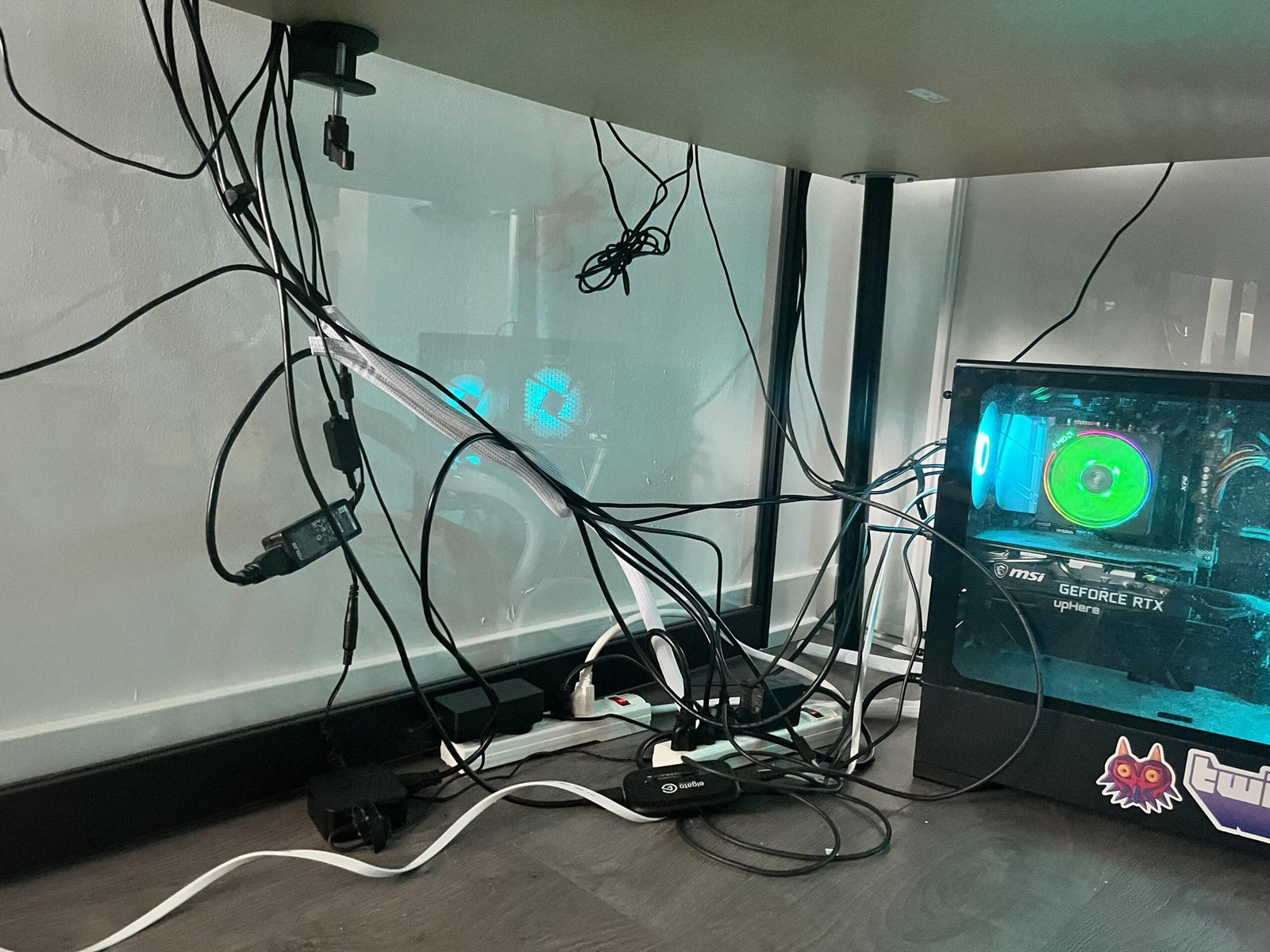
Power strips and large adapters are some of the messiest items. Place them in a cable management box or mount them under your desk with brackets. This keeps the floor clear and reduces dust buildup.
5. Separate Power And Data Cables
Running power cables and data cables (like HDMI, USB, Ethernet) together can cause electromagnetic interference. Keep them at least a few inches apart when possible. This is especially important for high-resolution gaming monitors.
6. Label Each Cable
Use label tags or colored tape to mark each cable near the plug. Label both ends if possible. This makes it fast to find the right cable when swapping devices or troubleshooting. For example, label “PC HDMI,” “Console Power,” “Speaker Left,” etc.
7. Make Use Of Desk Grommets
Many gaming desks come with built-in grommets—holes with plastic covers for cables. Route cables through these for a clean look. If your desk doesn’t have them, you can buy stick-on grommets.
8. Organize Behind The Monitor
The space behind your monitor can quickly become a mess. Use short monitor arms or stands with built-in cable channels. Secure cables along the arm or stand with ties or clips. This keeps cables off the surface and out of sight.
9. Manage Console And Peripheral Cables
If you use a console or many accessories, use separate sleeves or boxes for each device. Don’t mix console and PC cables in the same bundle—this makes upgrades or repairs easier.
10. Route Audio And Speaker Cables Carefully
Speaker wires are often longer and more visible. Run them along walls or under the carpet using flat adhesive cable covers. If you have a subwoofer, keep its cable away from power cords to avoid hum or noise.
Common Mistakes To Avoid
Many people start strong but fall into these traps:
- Over-tightening ties: This can damage cables over time.
- Ignoring airflow: Bundles that block fans or vents can cause overheating.
- Using tape directly on cables: Sticky residue can harm wires and attract dust.
- Forgetting slack: Cables need a bit of extra length for moving devices or maintenance.
- Mixing device cables: Don’t group all cables together—keep them by device for clarity.
Advanced Tips For Ultimate Cable Management
Want to take your gaming setup to the next level? Here are strategies even many pros miss.
Use Modular Power Strips
Some power strips have swappable sockets or USB ports. This lets you fit adapters without wasting space. Consider strips with individual switches for each port to cut power when not in use.
Go Wireless Where Possible
Switch to wireless mouse, keyboard, and headset if your setup allows. Fewer cables mean less clutter. However, keep in mind that wireless devices need charging—set up a charging station with hidden cables.
Install Under-desk Cable Trays
A cable tray mounts under your desk, holding all power bricks and excess cable out of sight. This method is especially useful for standing desks or multi-monitor setups.
Use Shorter Cables
Long cables create loops and tangles. Buy custom-length cables for your devices, or use cable winders to store excess length. For example, a 3-foot HDMI cable is usually enough for a monitor on your desk.
Integrate Smart Lighting
If you use RGB lighting strips, run their wires in the same trays or sleeves as other cables. Some lighting systems offer wireless controls, reducing the need for extra wires.
Credit: www.leetdesk.com
Practical Example: Organizing A Typical Gaming Desk
Imagine a desk with a PC, two monitors, a console, speakers, a webcam, and a charging dock. Here’s how you could organize this setup:
- Place the power strip in a cable management box under the desk.
- Use a cable tray to hold power bricks and excess cable.
- Route monitor and PC cables through desk grommets and bundle them with Velcro ties.
- Attach cable clips under the desk for the keyboard, mouse, and webcam cables.
- Keep console cables in a separate sleeve, labeled for quick swaps.
- Run speaker wires along the wall with adhesive covers.
This method keeps cables out of sight, allows easy upgrades, and prevents interference.
Comparing Cable Management Accessories
Not sure which accessories are worth buying? Here’s a quick comparison:
| Accessory | Best For | Drawbacks |
|---|---|---|
| Velcro ties | Reusable bundling | Can loosen over time |
| Zip ties | Permanent setups | Hard to remove |
| Cable sleeves | Hiding multiple wires | Harder to add/remove cables |
| Cable clips | Securing single cables | Limited holding strength |
| Cable trays | Large setups | Need installation |
Choose tools based on your needs, not just popularity.
Credit: www.reddit.com
Maintenance: Keeping Your Setup Tidy
Cable organization is not a one-time task. Every few months:
- Check cables for dust and damage.
- Re-tighten or adjust ties.
- Swap out worn labels.
- Rethink cable paths if you add new equipment.
Set a reminder to do a quick tidy-up every time you clean your desk. This keeps your setup looking and working great.
Eco-friendly Cable Management
Many gamers don’t consider the environmental impact of cable organization. Use reusable Velcro ties instead of single-use zip ties. Choose accessories made from recycled materials. When replacing cables, recycle old ones at e-waste centers rather than throwing them in the trash. Small choices help reduce electronic waste.
When To Upgrade Your Cables
Old or low-quality cables can cause lag, poor image quality, or even device damage. Upgrade to modern HDMI 2.1 for high-refresh-rate gaming monitors, or shielded USB cables for VR headsets. If you notice loose connections or flickering screens, it’s time to replace those wires.
Inspiration: Pro Gaming Setups
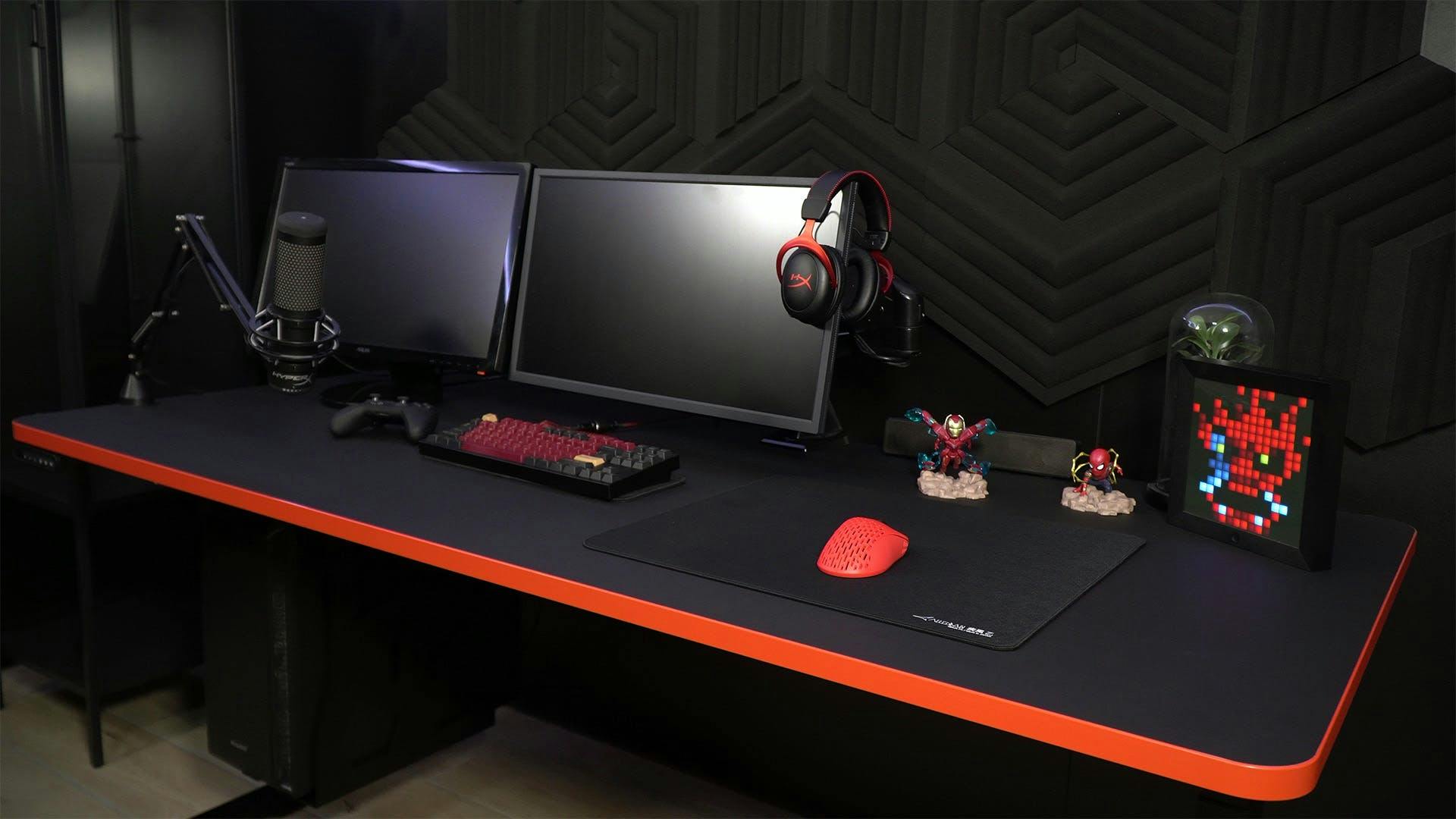
Professional streamers and esports players often post photos of their desks. Notice how the best setups have almost no visible wires. They use custom desks with built-in cable channels, under-desk trays, and modular accessories. While not everyone can build a custom desk, you can use the same principles with affordable accessories.
For more ideas, check out this PC Gamer desk setup guide.
Frequently Asked Questions
How Do I Hide Cables If My Desk Is Against The Wall?
Move power strips and cables to the underside of the desk using trays or adhesive mounts. Run cables along the wall with flat cable covers or paintable raceways for a seamless look.
Is It Safe To Bundle Power And Data Cables Together?
It’s best to keep them separate. Bundling power and data cables can cause interference, leading to signal loss or static. Try to keep at least a few inches of space between them.
What’s The Fastest Way To Organize Cables For A Temporary Setup?
Use Velcro ties to bundle cables loosely and cable clips to prevent them from falling. Label each end for quick teardown. Avoid zip ties for temporary setups—they’re hard to remove.
Do I Need Special Cables For Gaming Monitors?
For high-refresh-rate monitors (120Hz or more), use certified HDMI 2. 1 or DisplayPort cables. Cheap or old cables may not support high resolutions or fast speeds, causing flicker or lag.
How Often Should I Check My Cable Management?
Check your cables every 2–3 months, or whenever you add new devices. Look for dust, loose connections, or wear. Regular checks keep your setup safe and efficient.
A well-organized gaming setup is more than just looks—it improves performance, safety, and your overall enjoyment. Taking the time to manage your cables means less stress and more focus on what matters: your game.