
Working from home has become common, but power outages can ruin your productivity fast. Imagine writing an important email or finishing a video call when, suddenly, your computer shuts off. Not only do you lose work, but you also risk damaging your electronics. That’s where a UPS battery backup comes in. A good UPS (Uninterruptible Power Supply) keeps your devices running when the power goes out, giving you time to save work and shut down safely. But with so many options and technical features, choosing the right UPS for your home office can feel confusing. This guide will walk you through everything you need to know to pick, set up, and use a UPS battery backup that fits your needs.
What Is A Ups Battery Backup?
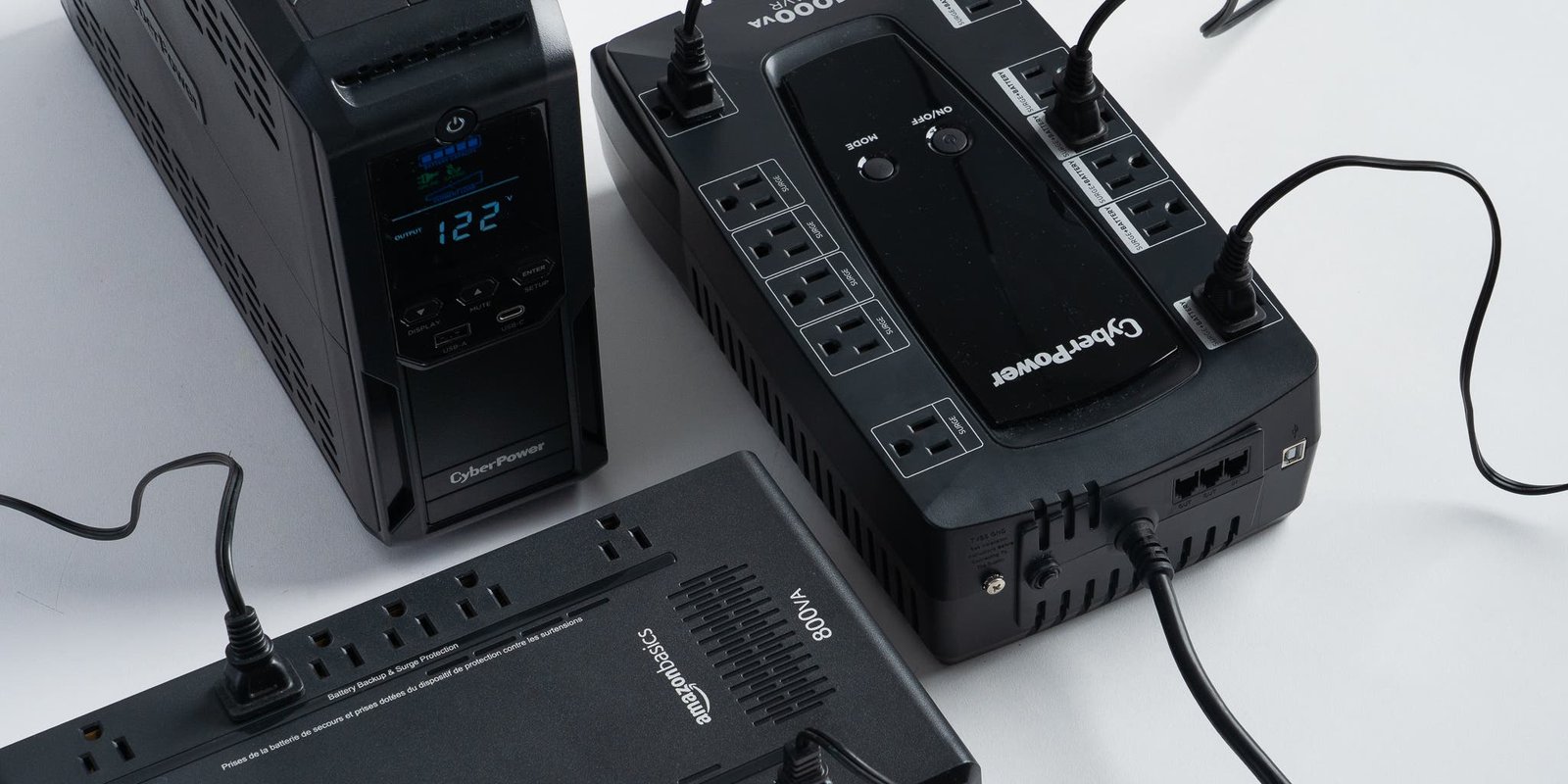
A UPS battery backup is a device that provides emergency power to your electronic devices when the main power fails. It works by switching instantly to battery power, so your devices do not shut off. Most home office UPS systems are designed to support computers, monitors, Wi-Fi routers, and other essential gear for a short period—usually between 5 and 30 minutes.
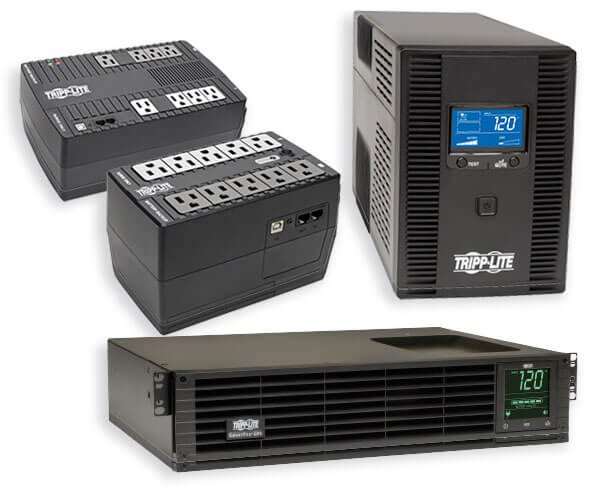
There are three main types of UPS:
- Standby (Offline) UPS: Basic protection. It switches to battery only when power fails.
- Line-Interactive UPS: Adds automatic voltage regulation, protecting against small power changes.
- Online (Double Conversion) UPS: Provides the highest protection. Always supplies power from its battery, even when the power is on.
For most home offices, a line-interactive UPS offers the best balance between protection and price.
Why You Need A Ups In Your Home Office
A UPS is more than just a backup battery. It protects your home office in several ways:
- Prevents data loss: If the power fails, you have time to save your work.
- Protects electronics: Sudden power loss or spikes can damage computers, hard drives, and routers.
- Keeps you online: You can finish important calls or meetings without interruption.
- Saves money: Replacing a damaged laptop or lost work can be costly.
Many people only realize the value of a UPS after experiencing a power loss. Even a short outage can lead to hours of lost work or expensive repairs.
How To Choose The Right Ups For Your Home Office
Picking the right UPS is not just about price or brand. You need to match your UPS to your equipment and work style. Here’s what matters most:
1. Calculate Your Total Load
Add up the wattage (or VA, which stands for Volt-Amps) of all devices you want to protect. Common items include:
- Computer (desktop/laptop)
- Monitor(s)
- Wi-Fi router
- Modem
- Printer (if essential)
- External hard drives
You can usually find power ratings on the device label or in the manual. Always add 20-30% to your total load to be safe.
2. Decide How Much Backup Time You Need
Think about what you want to do during a power cut. Do you just need a few minutes to save files and shut down? Or do you want to keep working for 15-30 minutes? Shorter backup times mean you can use a smaller, cheaper UPS.
3. Check For Key Features
Some UPS models come with helpful extras:
- Automatic Voltage Regulation (AVR) to smooth out small power changes
- LCD display to show battery and load status
- USB/data port for automatic PC shutdown
- Replaceable batteries for longer life
- Audible alarms for low battery or overload
4. Choose The Right Type
For most home offices, a line-interactive UPS is recommended. If you use sensitive equipment (like servers or audio/video gear), an online UPS may be worth the extra cost.
5. Quality And Brand Reputation
Stick with well-known brands like APC, CyberPower, and Eaton. They offer better support and usually have longer warranties.
6. Budget Considerations
Good UPS models for home use typically cost between $60 and $250, depending on features and capacity.
Ups Sizing Example
Let’s say your setup includes:
- Desktop PC (250W)
- Monitor (40W)
- Router (10W)
- External drive (10W)
Total: 310W. Add 30% safety margin = 403W. You’d want a UPS rated for at least 400W (or about 700VA).
Comparing Popular Ups Models For Home Office
To make things easier, here’s a comparison of three popular UPS models suitable for most home offices:
| Model | Type | Capacity (VA/W) | Backup Time (Half Load) | Price Range (USD) |
|---|---|---|---|---|
| APC Back-UPS Pro 1000VA | Line-Interactive | 1000/600 | 13 minutes | $130-$160 |
| CyberPower CP900AVR | Line-Interactive | 900/560 | 10 minutes | $110-$140 |
| Eaton 5S 850VA | Line-Interactive | 850/510 | 9 minutes | $120-$150 |
All three have enough capacity for a small office setup and include AVR for better protection.
Setting Up Your Ups Battery Backup
Once you have your UPS, setting it up is simple, but a few details matter:
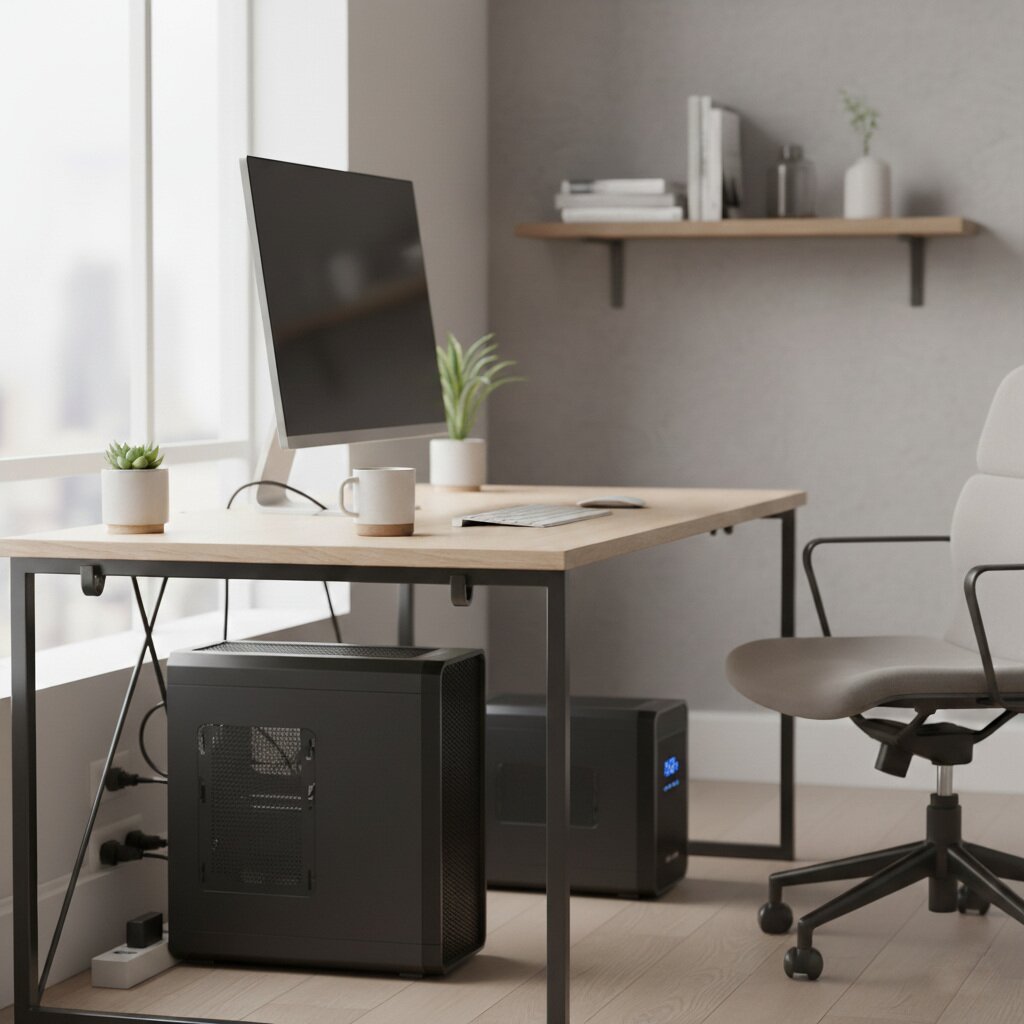
- Place the UPS on a flat, dry surface near your desk but away from direct sunlight and heat.
- Connect only essential devices like your computer, monitor, and networking gear to the battery-backed outlets. Most UPS units have extra outlets that do not provide battery backup, just surge protection.
- Do not connect laser printers, heaters, or large appliances to your UPS—they use too much power and can overload it.
- Install any monitoring software (if included) to get alerts on battery status or to enable automatic shutdown.
- Charge the UPS fully before first use (usually 6–8 hours).
- Test the UPS by unplugging it from the wall while your devices are running.
Example: Connecting Devices
A common mistake is plugging everything into the UPS. Only connect:
- Computer
- Monitor
- Wi-Fi router
- Modem
Avoid plugging in desk lamps, speakers, or charging phones, unless you have extra capacity.
How Long Will A Ups Run My Devices?
Backup time depends on two things: the UPS battery size and how much power your devices use. The more devices you connect, the less backup time you get.
Here’s an example showing typical run times for a 1000VA (600W) UPS at different loads:
| Connected Load (W) | Estimated Backup Time |
|---|---|
| 100W (laptop, router) | 40-50 minutes |
| 250W (desktop, monitor, router) | 18-22 minutes |
| 400W (multiple devices) | 8-12 minutes |
| 600W (full load) | 4-6 minutes |
It’s smart to plan for no more than 50–70% of your UPS’s maximum capacity. This gives you longer backup and less stress on the battery.
Credit: www.nytimes.com
Maintenance And Battery Life
A UPS needs basic care to work properly when you need it most.
- Check battery status every 3–6 months. Most UPS units have a test button.
- Replace batteries every 2–4 years, or sooner if the UPS beeps often or backup time drops.
- Keep the area around the UPS clean and free of dust.
- Do not keep the UPS plugged in all the time if not in use for months—batteries can degrade.
A common beginner mistake is ignoring battery health. If your UPS shows a “replace battery” warning, act quickly—an old battery won’t protect your equipment.
Advanced Tips For Home Office Power Protection
Beyond the basics, here are some expert tips for better UPS use:
- Label your UPS outlets: Mark which outlets are battery-backed and which are surge-only.
- Use power management software: Some UPS models let you safely shut down your PC if the battery gets low, even if you’re away.
- Test your UPS during real work hours: Unplug the UPS while you’re working once a month to make sure everything runs smoothly.
- Consider a second, smaller UPS just for your Wi-Fi router. This keeps your internet running even if your main UPS is overloaded.
- Read the warranty details: Some brands offer connected equipment guarantees, paying for damages if their UPS fails.
Credit: blog.batterymart.com
Common Mistakes To Avoid
- Buying a UPS that’s too small: Always size for your real power needs, with a safety margin.
- Overloading the UPS: Don’t plug in high-power devices like heaters or big speakers.
- Ignoring battery replacement: Old batteries can fail silently.
- Blocking UPS ventilation: A UPS can overheat if the vents are covered.
- Not testing the UPS regularly: Find problems before an actual outage.
Environmental Impact And Recycling
UPS batteries are usually sealed lead-acid or lithium-ion. Both types need proper recycling. Do not throw UPS batteries in the trash. Many electronics stores and recycling centers accept old UPS units and batteries.
Using a UPS also saves energy in the long run by protecting your equipment and reducing e-waste. Some modern UPS models are more energy-efficient and use eco-friendly battery technology.
Should You Consider A Whole-home Ups Or Generator?
If you live in an area with frequent or long power cuts, a regular home office UPS might not be enough. In that case, a whole-home UPS or a generator could be worth the investment. These systems can keep your entire house running, but they cost much more and need professional installation.
For most people, a standard desktop UPS is enough for short outages and basic protection.
Frequently Asked Questions
What Size Ups Do I Need For A Home Office?
Add up the wattage of your essential devices (computer, monitor, router) and add 20-30% as a safety margin. For most home offices, a UPS rated between 600VA and 1000VA is enough.
Can I Plug My Printer Into A Ups?
It’s not recommended to connect laser printers or other high-power devices to a UPS. They can overload the UPS and reduce backup time. Only connect essential electronics.
How Often Should I Replace The Ups Battery?
Most UPS batteries last 2–4 years. Replace the battery if the UPS warns you, backup time drops, or the battery fails a self-test.
Will A Ups Protect My Equipment From Lightning?
A UPS can help protect against small power surges, but it cannot fully protect against a direct lightning strike. For best safety, use a surge protector with your UPS and unplug devices during severe storms.
Where Can I Learn More About Ups Systems?
For more detailed technical information and reviews, visit the official Wikipedia page on UPS.
A UPS battery backup is a smart investment for any home office. It protects your valuable work, keeps you online, and offers peace of mind during power interruptions. With the right sizing, setup, and care, your UPS will be ready whenever you need it—helping you stay productive no matter what happens with the power.
Credit: tripplite.eaton.com