
Setting up your monitor at the right height is more important than many people realize. If you spend long hours working at a computer, you may notice headaches, neck pain, or eye strain. These problems are often caused by poor monitor positioning.
Getting your monitor height right can help you work more comfortably, stay productive, and even avoid long-term health issues.
Many people think setting up a monitor is just about plugging it in and turning it on. But there’s a science to it. The right height depends on your body, your desk, and how you use your computer. This guide will show you exactly how to set up your monitor height correctly, with practical steps, real examples, and tips that most beginners miss.
Why Monitor Height Matters
When your monitor is too high or too low, your body has to adjust. You might tilt your head, hunch your shoulders, or strain your eyes. Over time, this can cause muscle fatigue and even lead to more serious conditions like repetitive strain injuries or chronic neck pain.
Studies show that up to 90% of office workers experience discomfort related to poor computer setup. Proper monitor height is a key part of ergonomics – the science of designing a workspace that fits your body. Good ergonomics can:
- Reduce eye, neck, and back pain
- Improve focus and productivity
- Lower risk of long-term health issues
Many people forget that small adjustments can make a big difference. Even a few centimeters of height can impact your comfort.
The Ideal Monitor Height: What Science Says
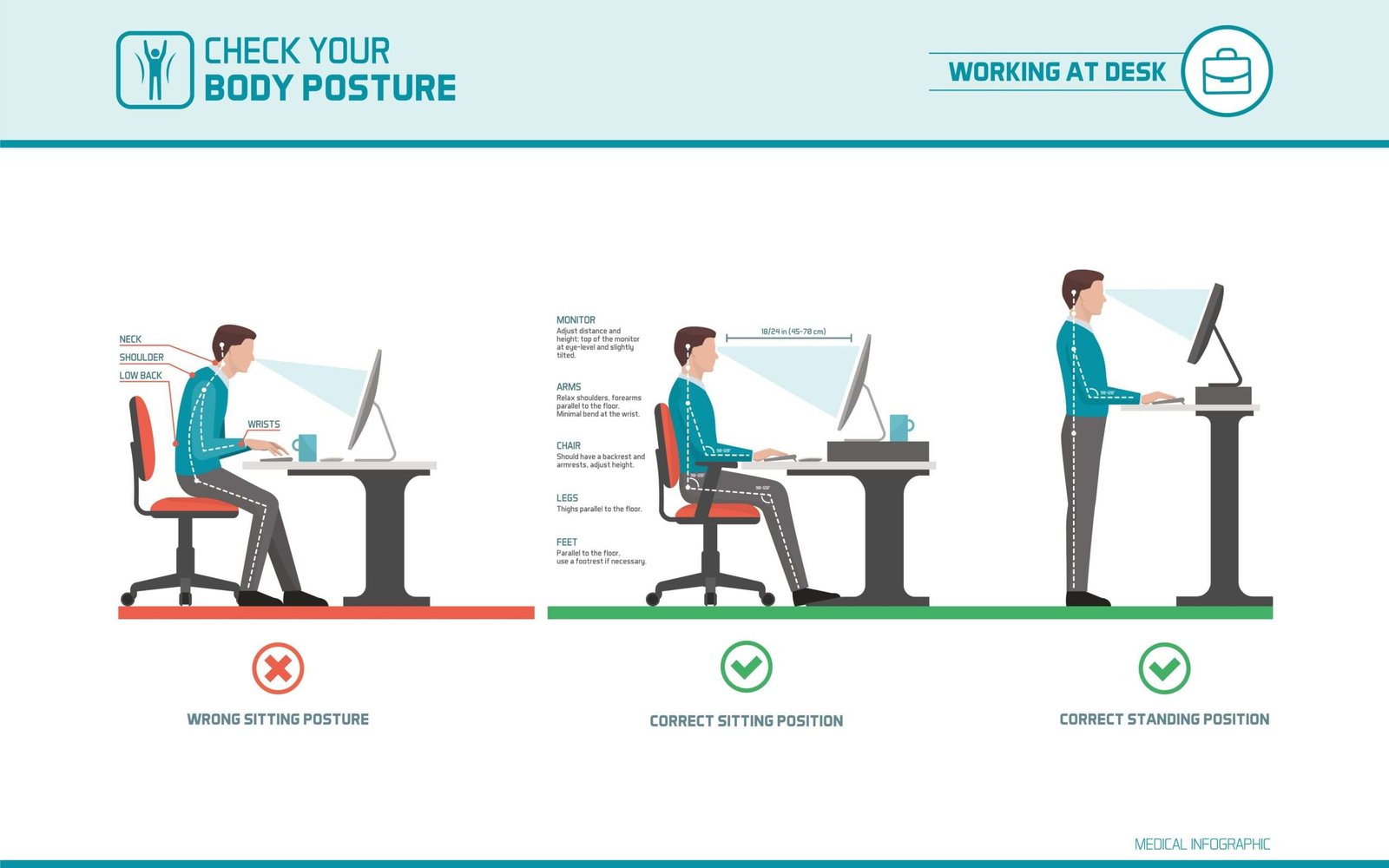
Experts in ergonomics recommend that the top of your monitor screen should be at or just below eye level when you are sitting up straight. This lets your eyes look slightly downward, which is more natural and reduces strain.
Here’s a quick summary of the recommended positions:
| Monitor Part | Recommended Position |
|---|---|
| Top of Screen | At or 2-5 cm below eye level |
| Screen Center | 15-20 degrees below eye level |
| Distance from Eyes | 50-70 cm (arm’s length) |
A small downward gaze helps keep your neck in a neutral, relaxed position. This is less tiring than looking straight ahead or upward for long periods.
Credit: www.haircareclinic.net
Step-by-step Guide: How To Set Up Monitor Height
Getting your monitor height right doesn’t need special tools. Here’s a simple process you can follow:
1. Sit In Your Normal Working Position
Before you adjust your monitor, sit as you normally would. Your feet should be flat on the floor, and your back should be straight. Adjust your chair height if needed, so your knees are about level with your hips.
2. Find Your Eye Level
Close your eyes and relax your head. When you open your eyes, your gaze should naturally fall just below the top edge of your monitor. If the monitor is too high or low, you will feel the difference.
3. Adjust The Monitor Height
Most monitors let you raise or lower the screen. If your monitor stand is fixed, you can use a monitor riser, a stack of books, or a sturdy box to lift it.
- Raise the monitor if your eyes are above the top of the screen.
- Lower the monitor if your eyes are below the top of the screen.
Check that the center of the screen is about 15-20 degrees below eye level. This reduces neck and eye strain.
4. Check The Distance
Your monitor should be 50-70 cm away from your eyes, about an arm’s length. If it’s too close, you may get eye strain. If it’s too far, you might lean forward, which is bad for your posture.
5. Tilt The Monitor
Most monitors can tilt. The screen should be perpendicular to your face. If you see reflections or glare, tilt the screen slightly to reduce them, but avoid tilting it so much that you have to move your neck.
6. Test And Fine-tune
Work for a few minutes, then check how you feel. Do you need to raise or lower the screen a little? Even small changes can help. Don’t be afraid to adjust more than once.
Common Mistakes To Avoid
Many people make simple mistakes when setting up their monitor. Here are some to watch for:
- Stacking the monitor too high – This makes you tilt your head back, which strains your neck.
- Placing the monitor too low – You may hunch over, leading to back pain.
- Leaning forward to see the screen – This means your monitor is too far away or too small.
- Ignoring screen tilt – Glare can make you squint or move awkwardly.
- Not adjusting for bifocals – If you wear bifocals, you may need to lower your monitor slightly.
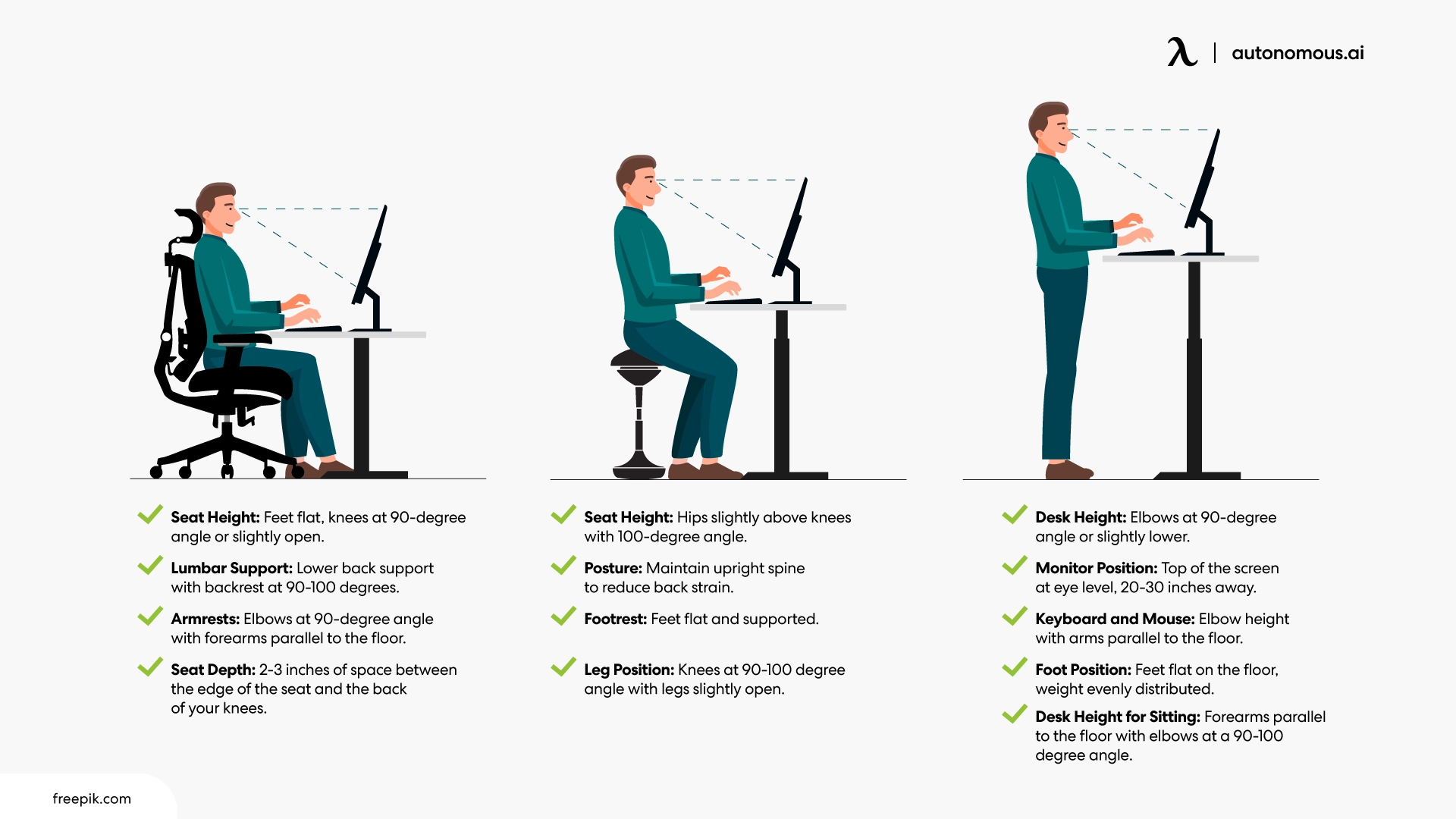
- Forgetting about standing desks – Monitor height matters even when you stand.
A non-obvious tip: If you use a laptop as your main screen, it’s almost always too low. A laptop stand and separate keyboard can make a big difference.
Credit: www.autonomous.ai
Tools And Accessories That Help
Sometimes, you’ll need extra tools to get your monitor to the perfect height. Here are some useful accessories:
- Monitor risers: These are platforms that lift your monitor.
- Adjustable monitor arms: These let you move your monitor up, down, forward, or back.
- Laptop stands: Useful if you use your laptop as your main screen.
- External keyboards and mice: These help you keep your arms in a natural position when your screen is raised.
Here’s a comparison of common solutions:
| Accessory | Adjustability | Best For | Price Range |
|---|---|---|---|
| Monitor Riser | Limited (height only) | Desktop computers | Low |
| Monitor Arm | High (height, tilt, distance) | Flexible workstations | Medium-High |
| Laptop Stand | Limited | Laptops | Low |
Monitor arms are the most flexible, but even a simple riser can make a big difference.
How To Set Up Dual Monitors
Many people use more than one monitor. The setup is a bit different:
- Primary monitor: Place your main screen directly in front of you, at the correct height.
- Secondary monitor: Place it beside your main monitor, at the same height, and angle it slightly toward you.
- If you use both screens equally, place them side by side with the edges touching and center the gap in front of you.
Always keep both monitors at the same height to avoid twisting your neck.
Special Cases: Laptops, Glasses, And Standing Desks
Using A Laptop
Laptops are designed for portability, not ergonomics. The screen is almost always too low when placed on a desk. You can:
- Use a laptop stand to raise the screen
- Connect an external keyboard and mouse for comfort
Wearing Glasses
If you wear bifocals or progressive lenses, you may need to lower your monitor slightly so you can look through the lower part of your glasses without tilting your head.
Standing Desks
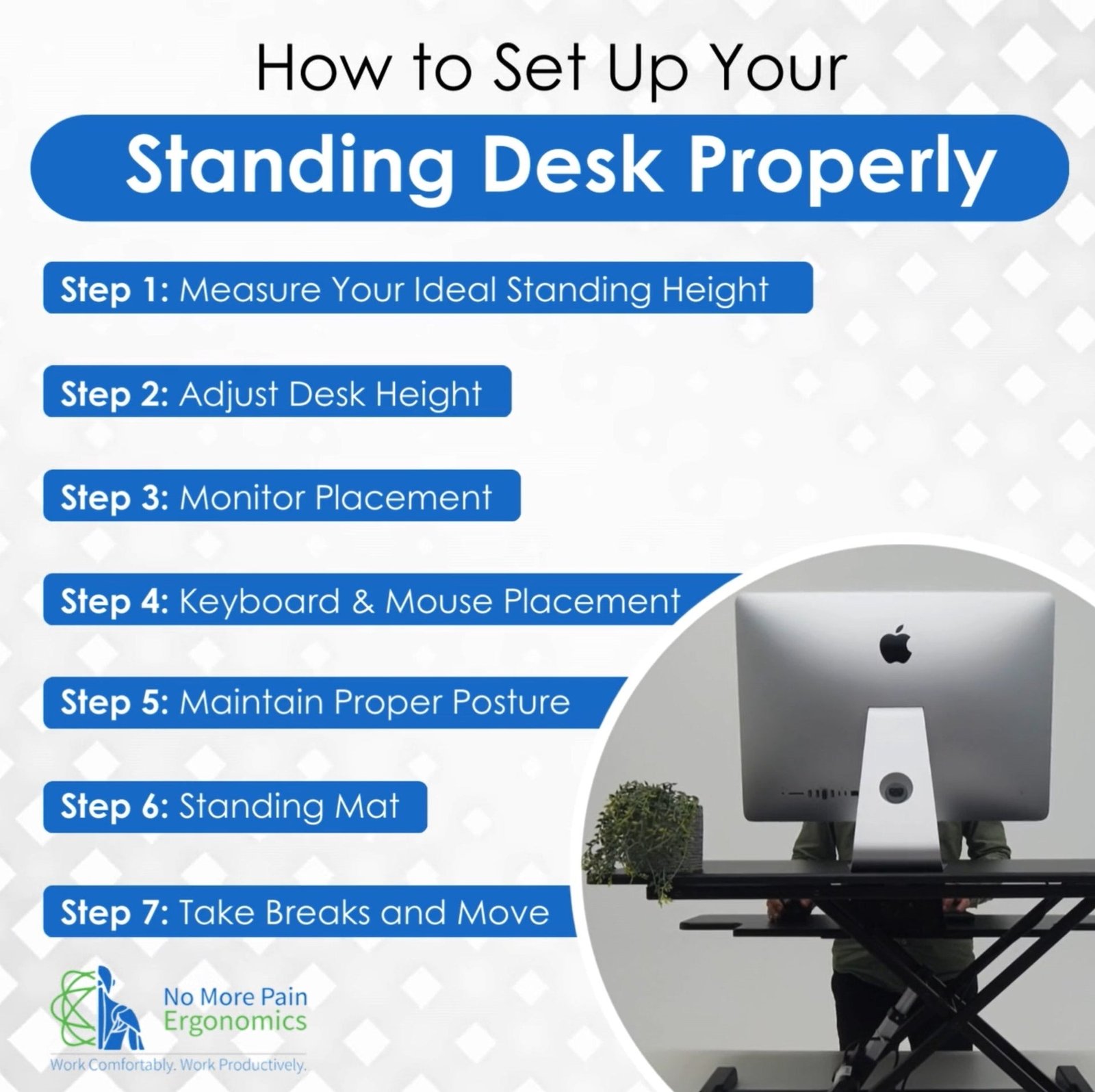
When standing, the rules are the same: the top of the monitor should be at or just below eye level. Adjust the monitor when you change from sitting to standing.
Monitor Size And Resolution: Does It Matter?
The size and resolution of your monitor also affect the ideal height and distance. Larger screens often need to be placed a bit further back. High-resolution screens can be used closer without seeing pixels, but you still want your eyes to fall just below the top edge.
Here’s how different monitor sizes affect setup:
| Monitor Size | Recommended Distance | Comments |
|---|---|---|
| 19-22 inches | 50-60 cm | Standard office use |
| 24-27 inches | 60-70 cm | Wider field of view |
| 32 inches and up | 70+ cm | May require deeper desks |
A common beginner mistake is using a very large monitor too close, which can cause eye strain.
Credit: www.nomorepainergonomics.com.au
Two Insights Most People Miss
- Small, regular adjustments matter. Your body and posture change throughout the day. Take a minute to re-check your monitor height every few days, especially after moving your desk or chair.
- Lighting affects comfort. Even the perfect monitor height won’t help if sunlight or overhead lights create glare. Adjust your monitor position or use blinds to avoid reflections, which can cause you to sit awkwardly.
Quick Checklist For The Perfect Monitor Height
- The top of the screen is at or slightly below eye level
- The center of the screen is 15–20 degrees below eye level
- The screen is about an arm’s length from your eyes
- You can sit up straight without tilting or leaning
- No glare or reflections on the screen
- Both feet flat on the floor, with relaxed shoulders
If you meet these points, you’re set for a more comfortable workday.
Frequently Asked Questions
How High Should My Monitor Be For The Best Posture?
The top edge of your screen should be at or just below your eye level. This lets you look slightly downward, which is most natural for your neck and reduces strain.
What If My Monitor Stand Does Not Adjust?
Use a monitor riser, a stack of books, or a solid box to lift your monitor. If you need more flexibility, consider a monitor arm, which allows for precise adjustments.
Does Monitor Height Affect Eye Strain?
Yes, improper monitor height can cause you to strain your eyes by looking up or down too much. Correct height helps keep your eyes relaxed and focused.
How Far Should My Monitor Be From My Eyes?
The ideal distance is about 50-70 cm (20-28 inches), or about an arm’s length away. Larger monitors should be a bit further back.
Where Can I Learn More About Monitor Ergonomics?
You can find detailed research and guidelines on office ergonomics from reputable sources like OSHA.
Finding the right monitor height may take a few tries, but the benefits are worth it. You’ll feel more comfortable, stay focused longer, and protect your health for the future. Remember, small changes can make a big difference. Take a few minutes today to adjust your monitor – your neck, back, and eyes will thank you.