
Managing your digital desktop and files can feel overwhelming, especially when your screen is full of random documents, screenshots, and folders. A messy desktop makes it hard to find what you need, slows you down, and can even hurt your productivity.
You might waste precious minutes searching for an important file or accidentally delete something useful. But organizing your digital workspace isn’t just about cleaning up—it’s about creating a system that helps you work smarter every day.
With the right steps, you can transform your computer into a space that’s easy to use and keeps you focused. From naming files clearly to setting up smart folders, a tidy desktop saves time and reduces stress. Let’s dive into practical strategies to organize your digital desktop and files—so you can take control of your workflow and enjoy a clutter-free screen.
Why Desktop And File Organization Matters
A well-organized digital workspace is more than just a preference. It has clear benefits:
- Faster file access: You find documents quickly when you need them.
- Lower stress: Less clutter means less mental load.
- Better productivity: You can focus on work, not searching.
- Easier backups: Structured folders make copying or syncing files simple.
- Improved security: Sensitive files are stored properly, not left in plain view.
According to a 2022 survey by RescueTime, professionals spend up to 2 hours each week looking for lost digital files. That’s almost 100 hours a year—time you could use for more important tasks.
Start With A Clean Desktop
The desktop is often a dumping ground for shortcuts, screenshots, and temporary files. It’s tempting to save everything here, but this habit quickly leads to clutter.
- Remove unnecessary icons: Delete files and shortcuts you don’t use.
- Sort remaining items: Move important files into folders. Store only active projects or essentials on the desktop.
- Use a neutral wallpaper: Bright or busy backgrounds make clutter more obvious and distracting. A simple, neutral background helps files stand out.
- Limit desktop folders: Keep only a few core folders, such as “Work in Progress,” “To File,” or “Urgent.”
A clean desktop acts as a launchpad—not a storage area.
Build A Logical Folder Structure
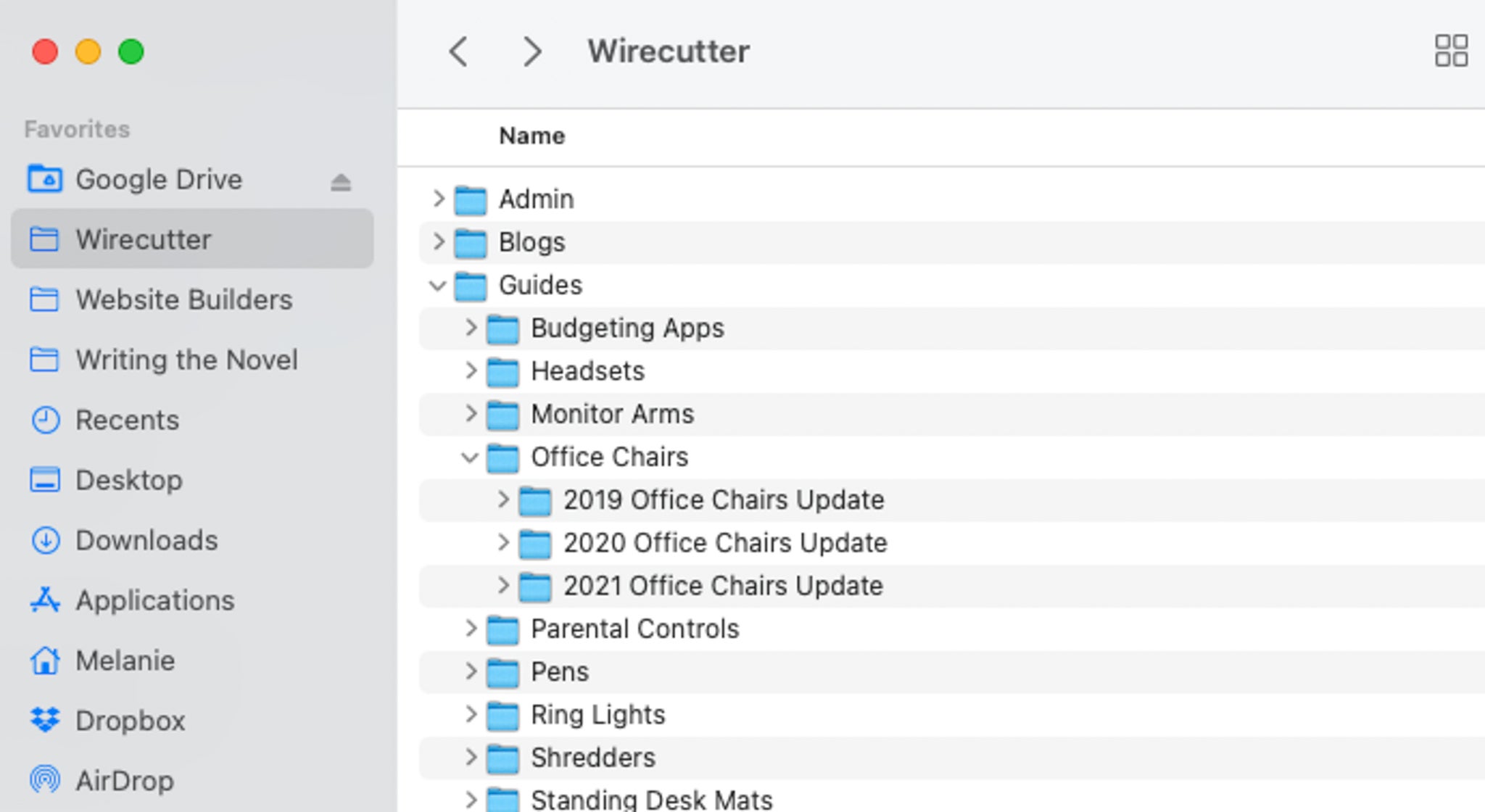
Folders are the backbone of digital organization. They allow you to group files by category, project, or date.
How To Create An Effective Folder System
- Think top-down: Start with broad categories (e.g., Work, Personal, School), then add subfolders as needed (e.g., Work > Clients > Project X).
- Avoid deep nesting: Don’t create folders within folders endlessly. Two or three levels is usually enough.
- Keep names short and clear: “2023_Taxes” is better than “Miscellaneous Documents April 2023.”
- Be consistent: Use the same structure across devices (laptop, desktop, cloud).
Example Folder Structure
| Main Folder | Subfolders |
|---|---|
| Work | Clients, Reports, Meetings, Templates |
| Personal | Bills, Photos, Travel, Health |
| School | Assignments, Notes, Projects, Exams |
A good folder structure means less time searching and more time working.
Smart File Naming
Confusing file names like “Document1” or “Scan2024” make searching a nightmare. Naming files clearly helps you find and sort them easily.
Tips For File Naming
- Be descriptive: Include what, when, and sometimes who (e.g., “Invoice_ABCCompany_2024-03-15.pdf”).
- Use dates in YYYY-MM-DD format: This keeps files in order.
- Avoid special characters: Some symbols cause errors in file systems.
- Stay consistent: Decide on a format and stick to it.
File Naming Examples
| Bad Name | Good Name |
|---|---|
| Scan1.pdf | Passport_Scan_2024-06-01.pdf |
| Notes.docx | MeetingNotes_DesignTeam_2024-05-10.docx |
| Resume.doc | Resume_JohnDoe_2024.doc |
Consistent file names make searching and sorting simple.
Credit: www.nytimes.com
Use Search And Tagging Features
Modern operating systems have powerful search and tagging tools. Learning to use these saves time, especially for large file collections.
- Tags: Both Windows and macOS allow you to tag files with colors or keywords. Use tags for priority, project, or status.
- Search: Search by file name, type, or even inside documents. You can also save searches for quick access later.
- Favorites/Shortcuts: Pin important folders for one-click access from your sidebar or desktop.
For example, you can tag urgent documents red, or use “Review” for files needing a final check. This system works alongside your folders, not instead of them.
Automate Organization With Tools
You don’t have to organize everything by hand. Automation tools can sort, rename, and back up files for you.
Useful Automation Tools
- Hazel (macOS): Automatically moves, renames, or deletes files based on rules.
- DropIt (Windows): Sorts files into folders when you drop them into a monitored area.
- File Juggler (Windows): Watches folders and acts on new files (move, copy, rename).
- IFTTT or Zapier: Automate cloud file actions, like saving email attachments to Google Drive.
These tools can, for example, move screenshots from your desktop to a “Screenshots” folder every night. Automation means less manual work and fewer forgotten files.
Regular Maintenance Habits
Even the best system needs upkeep. A few minutes of regular maintenance prevents chaos from returning.
- Daily: Clear your desktop at the end of the day.
- Weekly: Move temporary files to their permanent places. Review your “To File” folder.
- Monthly: Archive old projects, delete duplicates, and empty the recycle bin.
Set calendar reminders if you forget. Small habits keep your system running smoothly.
Back Up Your Files
No system is perfect—hardware fails, or files get corrupted. Backups protect your work from disaster.
How To Back Up
- Cloud services: Google Drive, Dropbox, OneDrive offer automatic backups and file syncing.
- External drives: Use a USB or external hard drive for local copies.
- Automated backup tools: Time Machine (Mac), Windows Backup, or third-party software.
Follow the 3-2-1 rule: three copies, two types of storage, one offsite. Regular backups mean you won’t lose important files, even if your computer crashes.
Credit: www.perkins.org
Use Cloud Storage Wisely
Cloud storage is great, but it needs structure too.
- Organize cloud folders like your local folders.
- Sync only what you need: Too many synced files can slow your computer.
- Manage sharing: Set proper permissions on shared files to protect privacy.
Cloud services also help you access files from any device, but disorganization in the cloud leads to the same problems as a messy desktop.
Avoid Common Mistakes
Many people make the same errors when organizing digital files:
- Saving everything to the desktop: This leads to instant clutter.
- Using vague file names: You won’t remember what “Doc1” means in a year.
- Too many nested folders: Deep folder trees make files hard to find.
- Not cleaning up regularly: Old files pile up fast.
- Forgetting backups: Lost files are often gone forever.
Spotting these mistakes early keeps your system efficient.
Digital Organization For Teams
If you work with others, shared organization is critical. A messy shared drive causes confusion and lost work.
- Set folder and naming rules: Everyone should use the same system.
- Assign responsibility: Someone should review and clean shared folders regularly.
- Use permissions wisely: Limit who can delete or move key files.
- Document the structure: Write a simple guide so new team members can learn the system.
A clear system avoids duplication and miscommunication.
Digital Organization For Students
Students deal with lots of files—assignments, notes, project drafts. Good organization makes study easier.
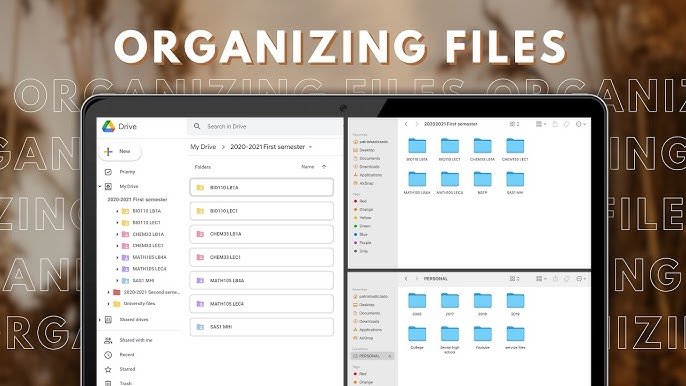
- Separate courses: Create a folder for each subject.
- Version control: Keep old drafts (“Essay_v1,” “Essay_v2”) until you finish, then delete extras.
- Digital notebooks: Apps like OneNote or Evernote let you tag and search notes by subject or date.
A tidy digital workspace means less stress at exam time.
Credit: www.youtube.com
Digital Organization For Creatives
Creative professionals—designers, writers, photographers—handle large numbers of files and versions.
- Project folders: One folder per project, with subfolders for assets, drafts, exports.
- Versioning: Use clear file names for versions (“Logo_Draft1,” “Logo_Final”).
- Asset libraries: Store reusable items (icons, fonts) in organized libraries.
- Preview images: Use software that shows thumbnails for easy searching.
A system tailored to creative work saves hours searching for the right version or asset.
Advanced Tips For Power Users
If you’re comfortable with tech, go a step further:
- Use file management apps: Tools like Total Commander (Windows) or ForkLift (Mac) offer advanced sorting and filtering.
- Script automation: Write simple scripts to batch rename or organize files.
- Keyboard shortcuts: Learn shortcuts for moving, copying, and searching files quickly.
- Regular audits: Review your folder structure and adapt as needs change.
These tricks keep your system efficient as your file collection grows.
How Organization Boosts Productivity
Research by the McKinsey Global Institute found workers spend nearly 20% of their time searching for information. Organizing your files can recover much of this time.
A clear system means:
- Less distraction: Clutter pulls your attention from key tasks.
- Faster onboarding: New team members or students find what they need immediately.
- Lower risk: Important files are backed up and protected.
File organization is a small investment for a big productivity payoff.
Frequently Asked Questions
How Often Should I Organize My Digital Desktop?
You should review and tidy your desktop at least once a week. Daily quick cleanups help keep clutter from building up, but a weekly routine ensures nothing is missed.
What Is The Best Way To Name Files For Easy Searching?
Include keywords, dates (in YYYY-MM-DD format), and project or client names. For example, use “Invoice_ABCCompany_2024-04-10. pdf” instead of “invoice. pdf. ” Consistency is key.
Which Folder Structure Works Best?
A simple, shallow structure works best. Start with broad categories (like Work, Personal, School), then add subfolders as needed. Avoid too many nested folders.
Should I Use Cloud Storage Or Local Storage?
Both have benefits. Cloud storage is good for backup and remote access, while local storage can be faster. For safety, use both and keep your folder structure consistent across them.
Are There Tools That Can Help Automate File Organization?
Yes. Tools like Hazel for Mac and DropIt for Windows can automatically sort, move, or rename files based on your rules. These help keep your system tidy with little effort. For a deeper look at automation tools, you can check the Wikipedia article on file automation.
A well-organized digital desktop and file system saves you time, lowers stress, and protects your important work. With a little planning and the right habits, you can enjoy a clutter-free digital life—and never lose another file again.